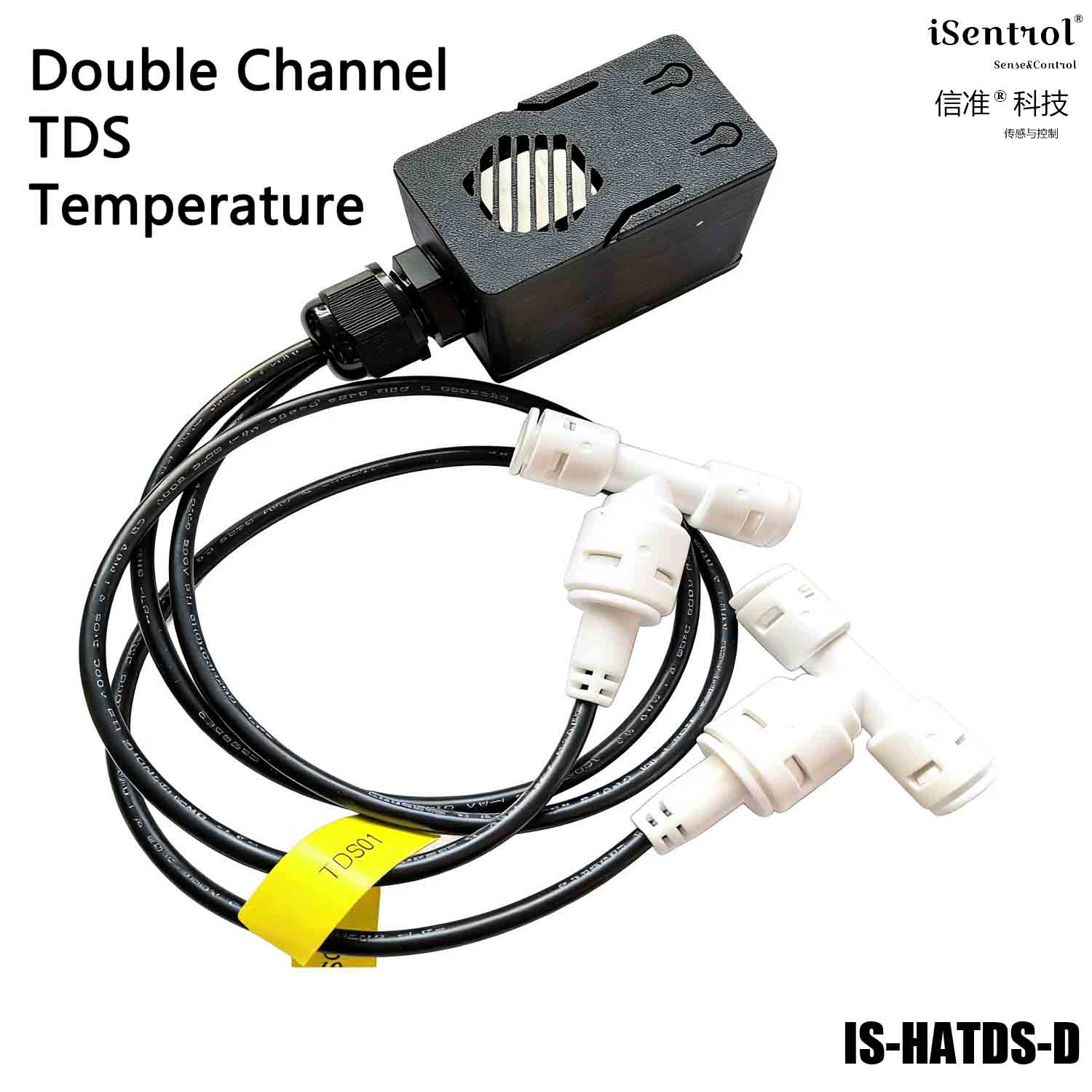
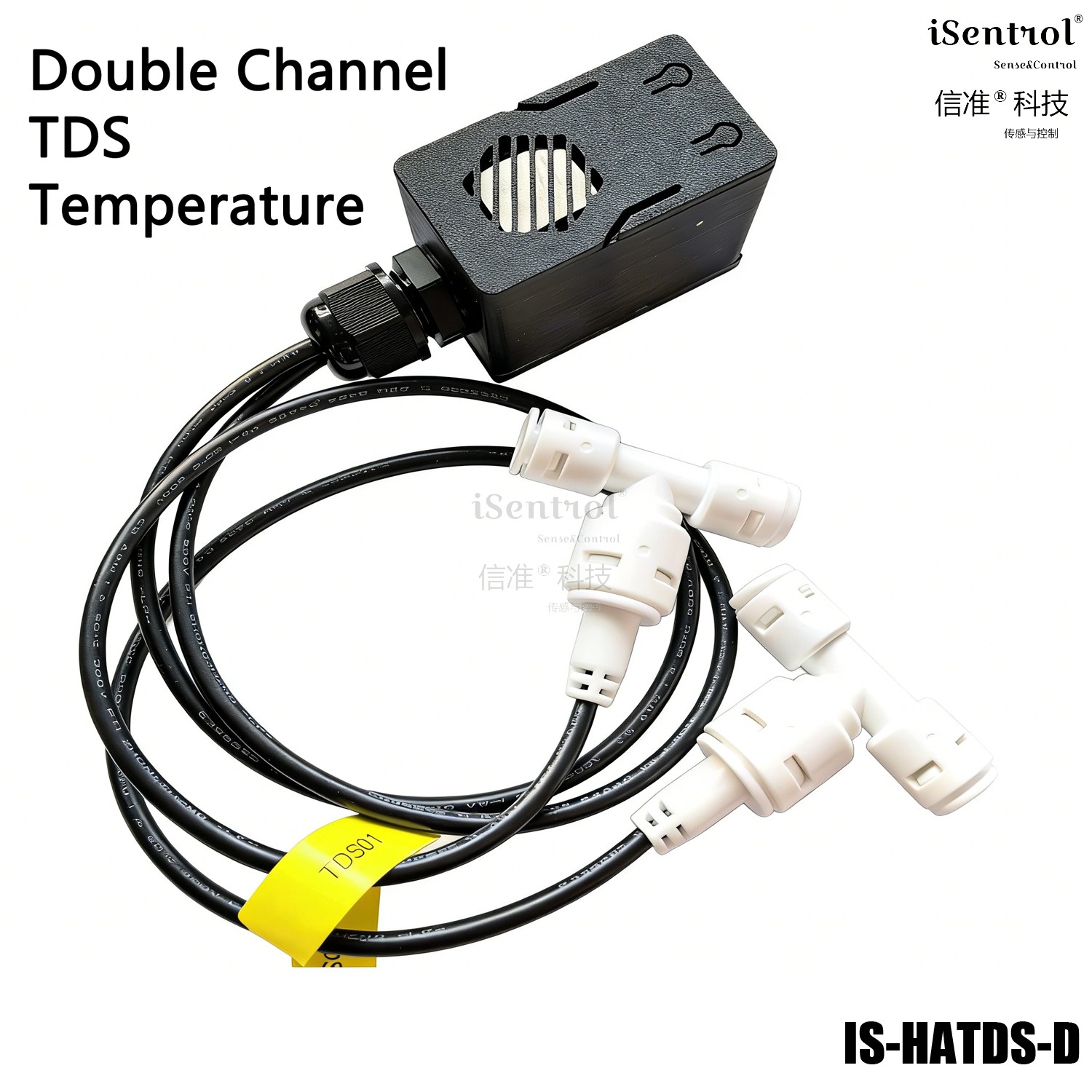
iSentrol HATDS Home Assistant User Manual
This user manual provides detailed instructions for installing and configuring the iSentrol HATDS1 water flow sensor module for Home Assistant integration.
Video Instruction
Watch the YouTube video guide for visual installation instructions:
https://www.youtube.com/watch?v=1ddlPa6tdHM
Product Overview
Home Assistant TDS1 (single channel) is a single-channel TDS water quality monitoring module from iSentrol (Sense and Control Technology). Built on the ESP32 platform, it uses one UART water probe to measure both TDS (total dissolved solids) and water temperature, and reports the data in real time over Wi-Fi to the built-in web console and to the Home Assistant smart-home platform. Simple to install and plug-and-play.
Single-channel monitoring: one UART probe, simple installation, plug-and-play. TDS + temperature: outputs both TDS (ppm) and water temperature (℃). Adjustable threshold alarm: TDS threshold is user-settable and saved across power loss; over-limit is auto-flagged as Warning. Wi-Fi wireless connection: view directly in the built-in web console, natively integrates with Home Assistant. Auto provisioning on disconnect: if Wi-Fi is lost, the device auto-opens a provisioning hotspot with guided phone setup. One-touch factory reset: long-press the BOOT button for 5 seconds to clear provisioning info — ideal for resale or migration. Connect the probe and power on via USB 5V. On first power-on the D2 LED blinks fast; after about 1 minute the provisioning hotspot iSentrol HATDS1 Fallback opens automatically. Connect your phone to this hotspot (no password); the provisioning page pops up, or visit Select your 2.4 GHz Wi-Fi and enter the password; the device reboots and connects automatically after saving. After provisioning succeeds the D2 LED switches to slow blink; the hostname on the router starts with isentrol-tds-single. Note: only 2.4 GHz Wi-Fi is supported. To change networks, long-press the BOOT button for 5 seconds then release to factory reset (this also clears the set threshold), then re-provision. Data is viewable via the built-in web page (device IP, port 80) or Home Assistant; Home Assistant auto-discovers the device on the same LAN and supports custom automations (e.g. push notification on TDS over-limit). The probe is for clean water only; do not measure corrosive liquids, and rinse with clean water and air-dry after use. Keep the probe cable and connector dry; install the host away from splashing water in a ventilated, dry location. TDS value is not a substitute for professional water testing and must not be the sole basis for drinking-water safety. Use a qualified 5V USB power supply, operate at 0–50 ℃, and avoid condensation and direct sunlight.Key Features
Status LED
LED State Meaning Fast blink (toggles every 0.25 s) Waiting for provisioning Wi-Fi not connected: power-on init, provisioning failure, or in hotspot mode Slow blink (toggles every 1 s) Working normally Connected to Wi-Fi, sampling and sending data normally First Use & Provisioning
http://192.168.4.1.Data & Functions
Data item Unit Description TDS ppm Probe TDS value, refreshed every 2 seconds Temperature ℃ Probe water temperature TDS Threshold ppm Alarm threshold, 0–2000 (step 10), saved across power loss TDS Status - Safe normal / Warning over-limit / Initializing / Unknown sampling off Specifications
Item Specification Model iSentrol HATDS1 Platform ESP32 (Wi-Fi 2.4 GHz) Power USB 5V Data refresh 2 seconds Threshold range 0–2000 ppm (step 10) Provisioning Hotspot (Captive Portal) Precautions
| Item | Specification |
|---|---|
| Model | iSentrol HATDS1 |
| Channel | Single-channel (TDS + temperature) |
| Platform | ESP32 (Wi-Fi 2.4 GHz) |
| Power | USB 5V |
| Data refresh | 2 seconds |
| Threshold range | 0–2000 ppm (step 10, saved across power loss) |
| Water status | Safe / Warning / Initializing / Unknown |
| Provisioning | Hotspot (Captive Portal), SSID iSentrol HATDS1 Fallback |
| Factory reset | Long-press BOOT button for 5 seconds |
| Integration | Built-in web console (port 80), Home Assistant auto-discovery |