Product Overview
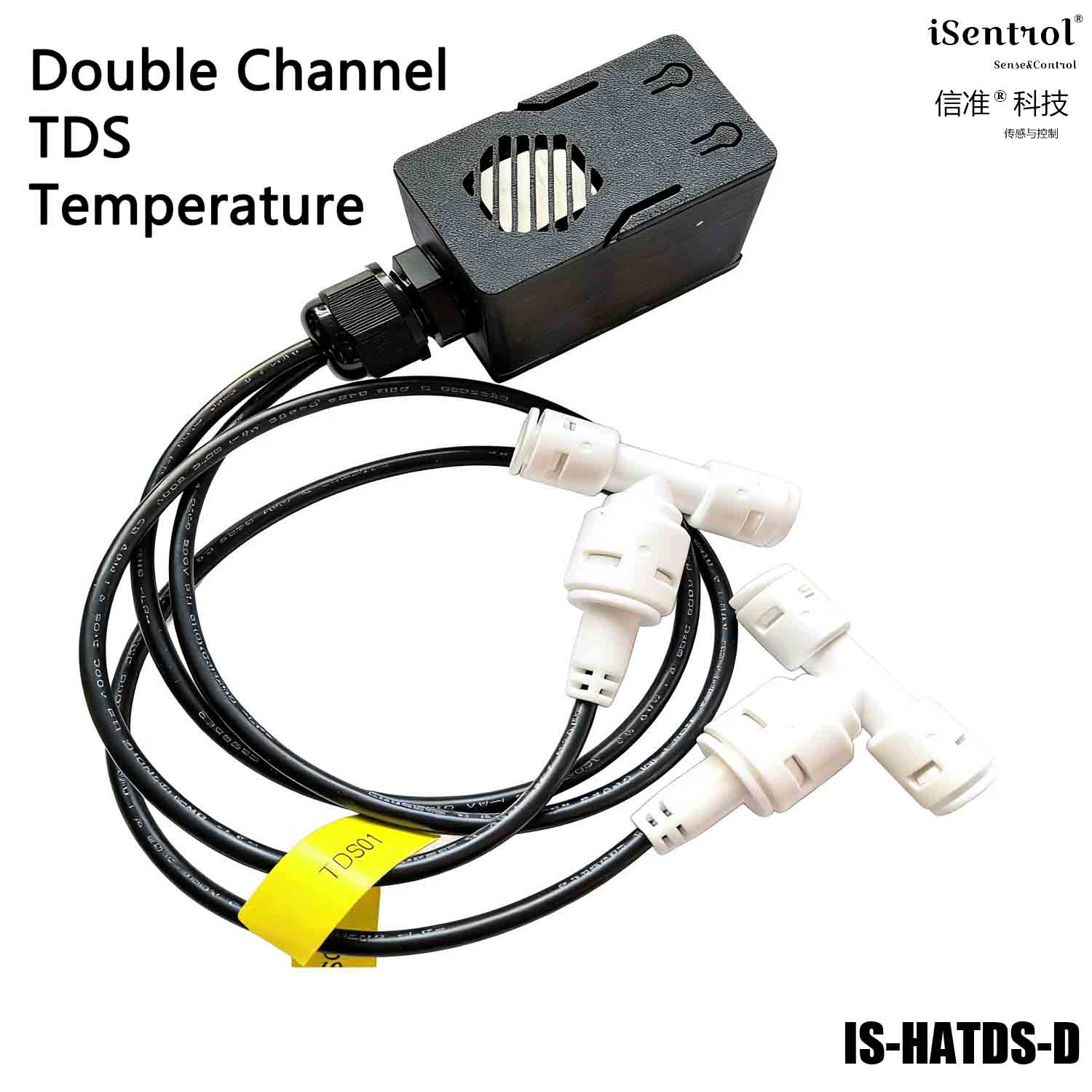
iSentrol HATDS is an ESP32-based dual-channel TDS water quality monitoring module. Two UART probes (raw water + purified water) measure TDS and temperature simultaneously, reporting data in real time over Wi-Fi to the built-in web console and to Home Assistant — no gateway required.
The module features a status LED (D2, blue) and a long-press factory reset, making provisioning and deployment extremely simple for water-treatment equipment makers, system integrators, and smart-home enthusiasts.
Key Features
Dual-channel monitoring: independent TDS + temperature acquisition for both raw-water (inlet) and purified-water (outlet) lines.
Real-time Wi-Fi reporting: data refreshes every 2 seconds, viewable via the built-in web console (port 80) and auto-discovered by Home Assistant.
Threshold alarms: independent TDS1 / TDS2 thresholds (0–2000 ppm, step 10), saved across power loss; exceeding the limit flags a Warning status.
Status LED: the blue D2 LED blinks fast = waiting for provisioning, blinks slow = sending data normally.
One-touch factory reset: long-press the BOOT button for 5 seconds to clear Wi-Fi and thresholds and re-enter provisioning.
Gateway-free integration: natively compatible with Home Assistant, plug-and-play, supports .local domain LAN access.
Status LED (D2, Blue)
| State | LED | Meaning |
|---|---|---|
| Waiting for provisioning | Fast blink (~2 Hz) | Wi-Fi not connected: power-on, provisioning failure, or in AP hotspot mode |
| Sending data normally | Slow blink (~0.5 Hz) | Connected to Wi-Fi and reporting data normally |
First-time Provisioning
Power on the device; the D2 blue LED blinks fast to indicate it is waiting for provisioning.
Connect your phone/PC to the hotspot
iSentrol HATDS Fallback(no password).Open
192.168.4.1in a browser and select your Wi-Fi, then enter the password.After saving, the device reboots and connects to Wi-Fi; the D2 LED switches to slow blink when provisioning succeeds.
Tip: on the same LAN you can also reach the web console at http://isentrol-tds-XXXXXX.local/ (XXXXXX = last six digits of the device MAC).
Factory Reset
To change Wi-Fi or clear saved thresholds:
Long-press the BOOT button for 5 seconds (release to trigger — avoids entering flash mode by mistake).
The device clears all NVS data (Wi-Fi credentials + TDS1/TDS2 thresholds) and reboots.
Within about 1 minute it automatically opens the hotspot
iSentrol HATDS Fallback; re-provision as above.
Note: factory reset also clears the two TDS thresholds; re-set them after re-provisioning.
Data & Functions
| Data item | Description |
|---|---|
| TDS1 (raw water) | Inlet TDS value, unit ppm |
| TDS2 (purified water) | Outlet TDS value, unit ppm |
| Temperature1 / 2 | Raw / purified water temperature, unit ℃ |
| TDS1 / TDS2 Threshold | Independent alarm thresholds, 0–2000 ppm, step 10, saved across power loss |
| TDS1 / TDS2 Status | Safe / Warning (over threshold) / Initializing / Unknown |
Precautions
The device and your phone/PC must be on the same LAN; the router must allow multicast (UDP 5353).
Android phones have unstable .local resolution — after provisioning, use the IP or the web console to access.
After moving to a new network, if the device cannot connect to the old Wi-Fi within 1 minute, it auto-opens the provisioning hotspot.
Factory reset clears the threshold settings — record your values beforehand.
| Item | Specification |
|---|---|
| Model | iSentrol HATDS |
| Channels | Dual-channel (raw water TDS1+temp1 / purified water TDS2+temp2) |
| Platform | ESP32 (Wi-Fi 2.4 GHz) |
| Power | USB 5V |
| Data refresh | 2 seconds |
| Threshold range | TDS1 / TDS2 each 0–2000 ppm (step 10, saved across power loss) |
| Water status | Safe / Warning / Initializing / Unknown |
| Provisioning | Hotspot (Captive Portal), SSID iSentrol HATDS Fallback |
| Factory reset | Long-press BOOT button for 5 seconds |
| Integration | Built-in web console (port 80), Home Assistant auto-discovery |